Your account security directly impacts the safety of your website. Passwords—even complex ones—can be exposed through data breaches elsewhere, phishing schemes, or automated guessing attacks.
Background
By adding Two-Factor Authentication (2FA) through Wordfence, we are putting an extra lock on the front door. Even if a malicious actor somehow gets hold of your password, they still won’t be able to log in without the temporary code generated exclusively on your physical mobile device.
- Blocks Unauthorized Access: Many automated account-takeover attacks are stopped cold by 2FA.
- Protects Site Integrity: Securing every individual login prevents unauthorised changes, malware injections, or data leaks.
- Quick & Low Friction: Setup takes less than two minutes, and day-to-day logins remain fast and seamless.
- Taking this quick step helps ensure your account—and your website—remains secure. Please follow the instructions below to complete your setup.
Before starting, make sure you have an authenticator app (such as Google Authenticator, Authy, or Microsoft Authenticator) installed on your mobile phone.
Step 1: Access Wordfence Security Settings
Log into your WordPress admin dashboard.
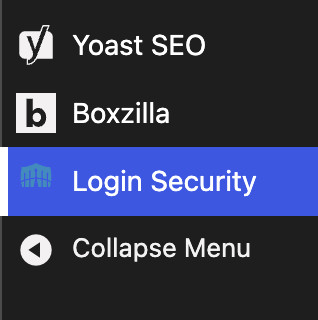
In the left-hand menu, navigate to Wordfence > Login Security.
Step 2: Link Your Authenticator App
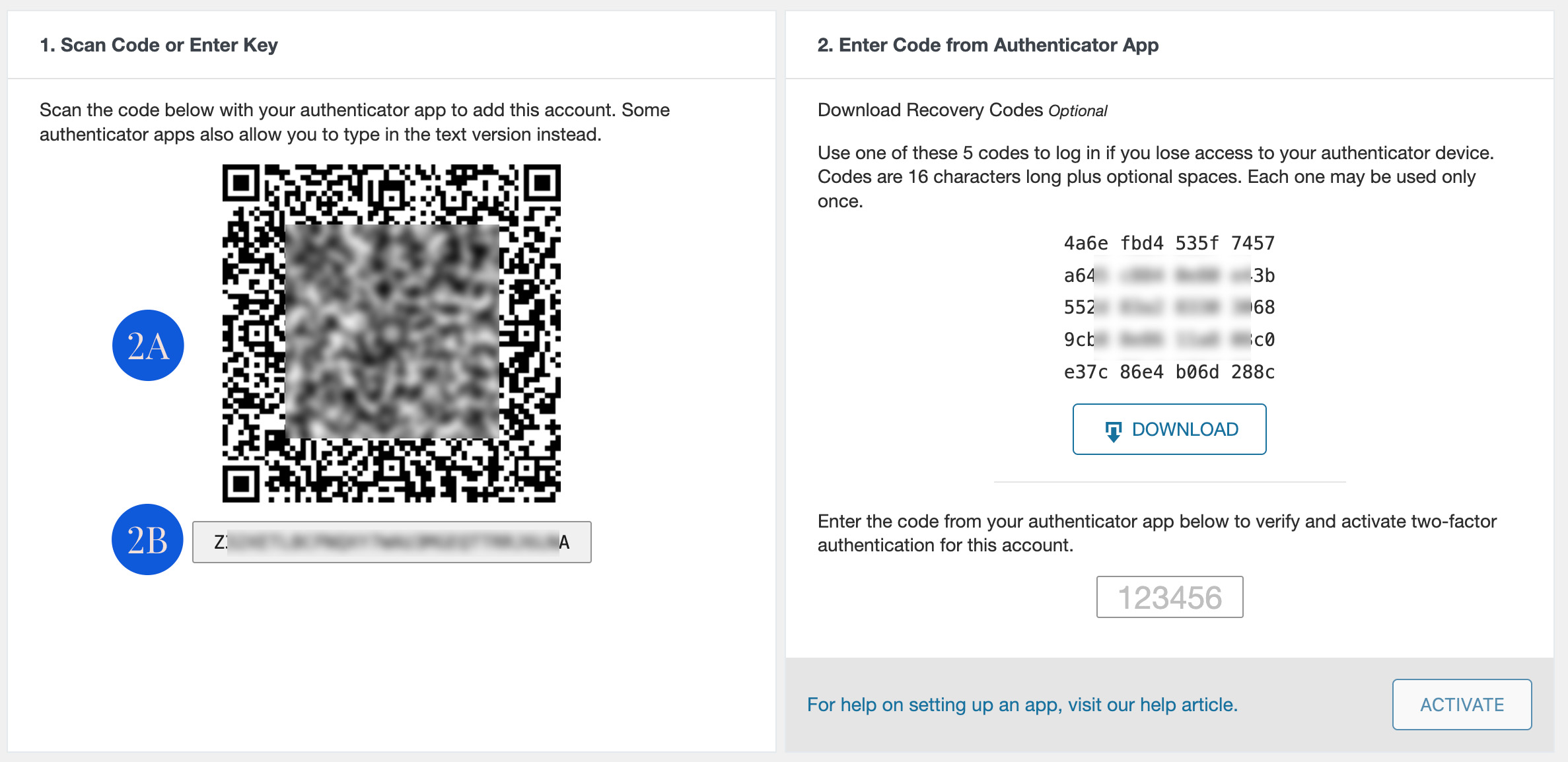
Make sure you are under the Two-Factor Authentication tab.
2A: Open your mobile device’s authenticator app, select the option to add a new account, and scan the QR code shown on your browser screen.
2B: (Alternative) If your app cannot scan the code, enter the secret key text string displayed next to the QR code into your app manually.
Step 3: Save Recovery Codes
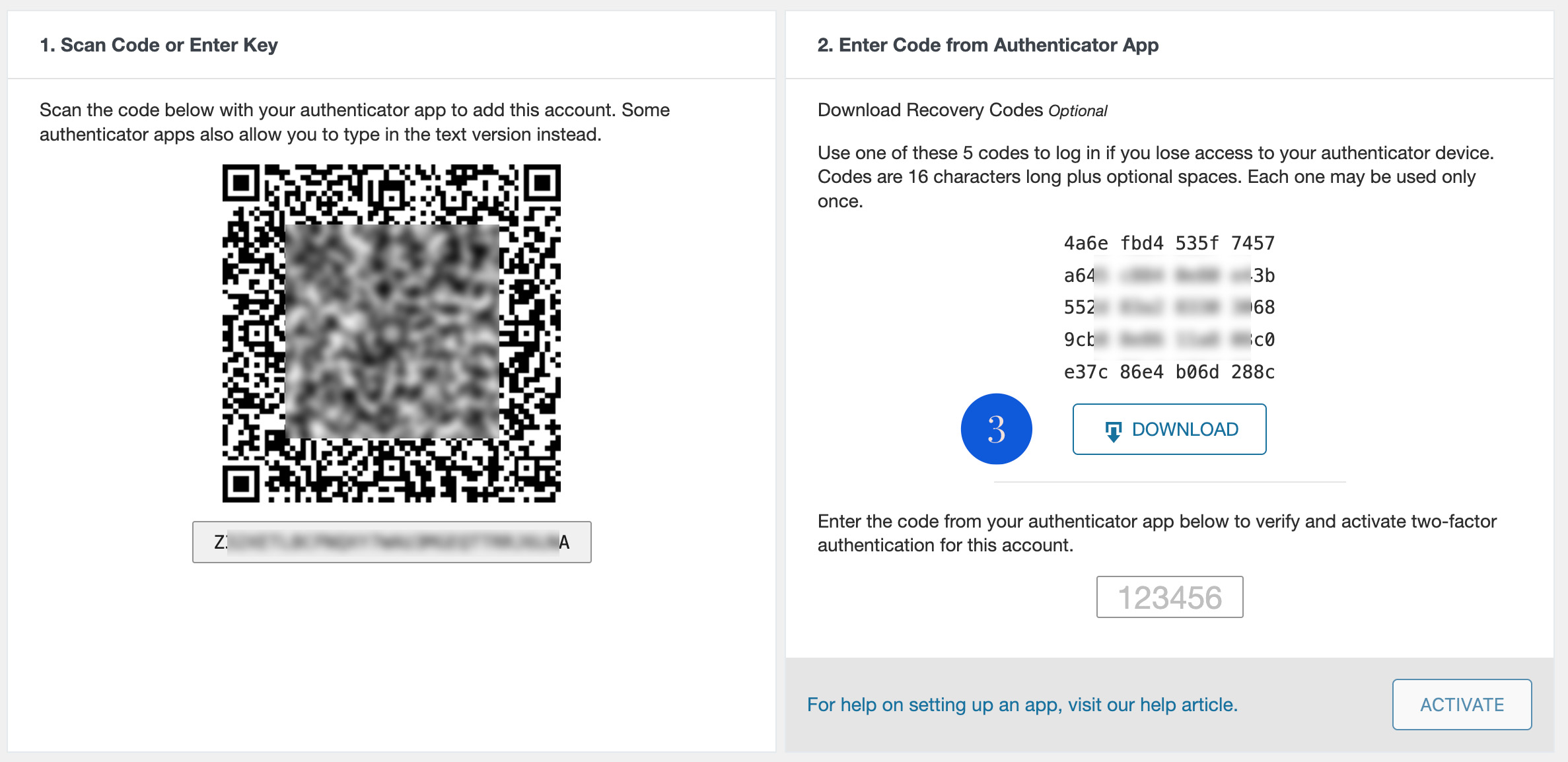
Click Download or copy the Recovery Codes listed on the screen.
Store these codes in a safe place (such as a password manager or encrypted file).
Note: If you lose access to your phone, these single-use codes are the only way to regain access to your account.
Step 4: Verify and Activate
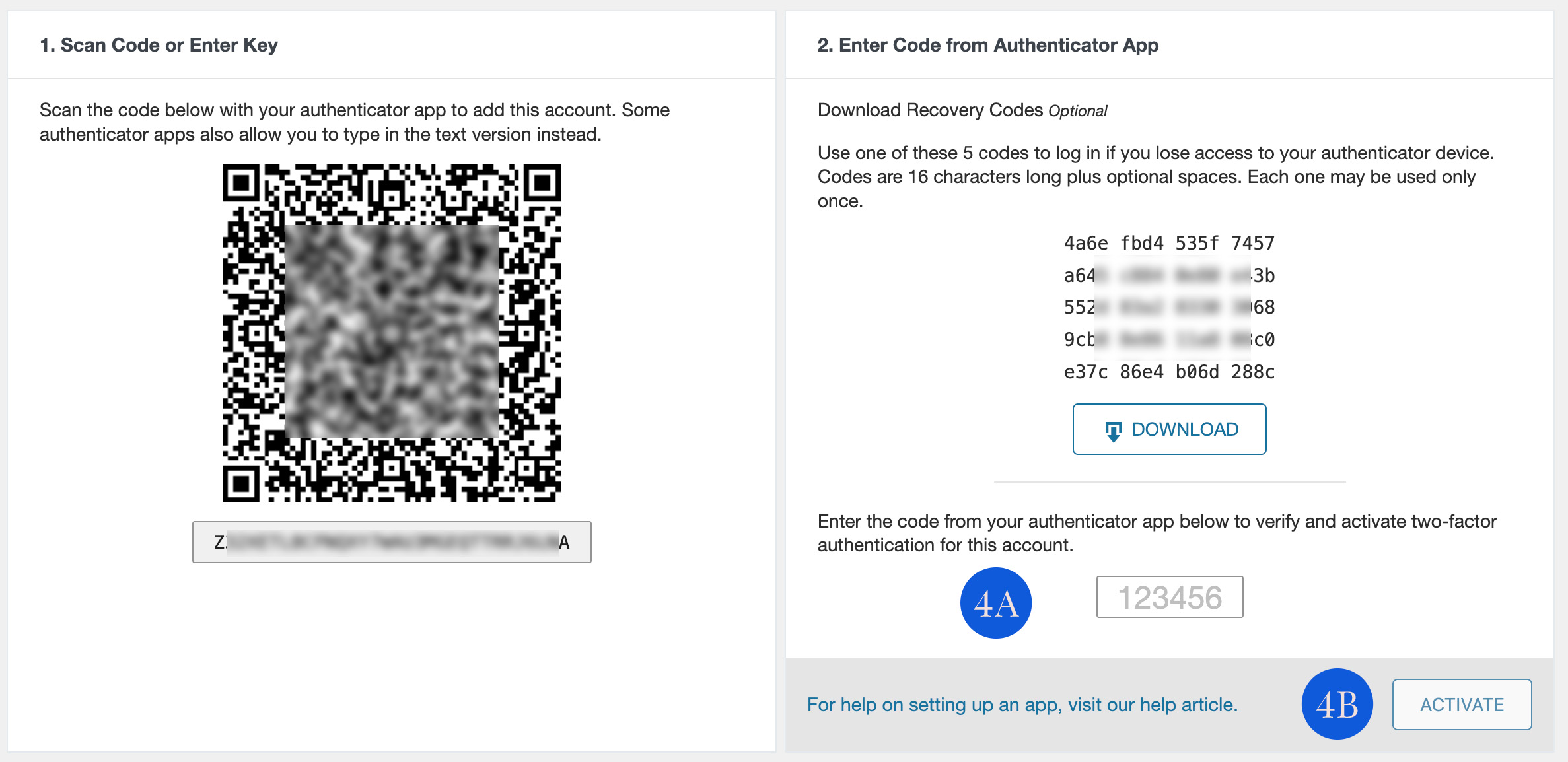
Look for the Authenticator Code input box beneath the QR code area in Wordfence.
4A: Enter the current 6-digit code generated by your authenticator app.
4B: Click Activate to complete the setup.